Editor
The editor lets you build your application using layouts and visual logic. It consists of several panels that serve different purposes.
The Explorer
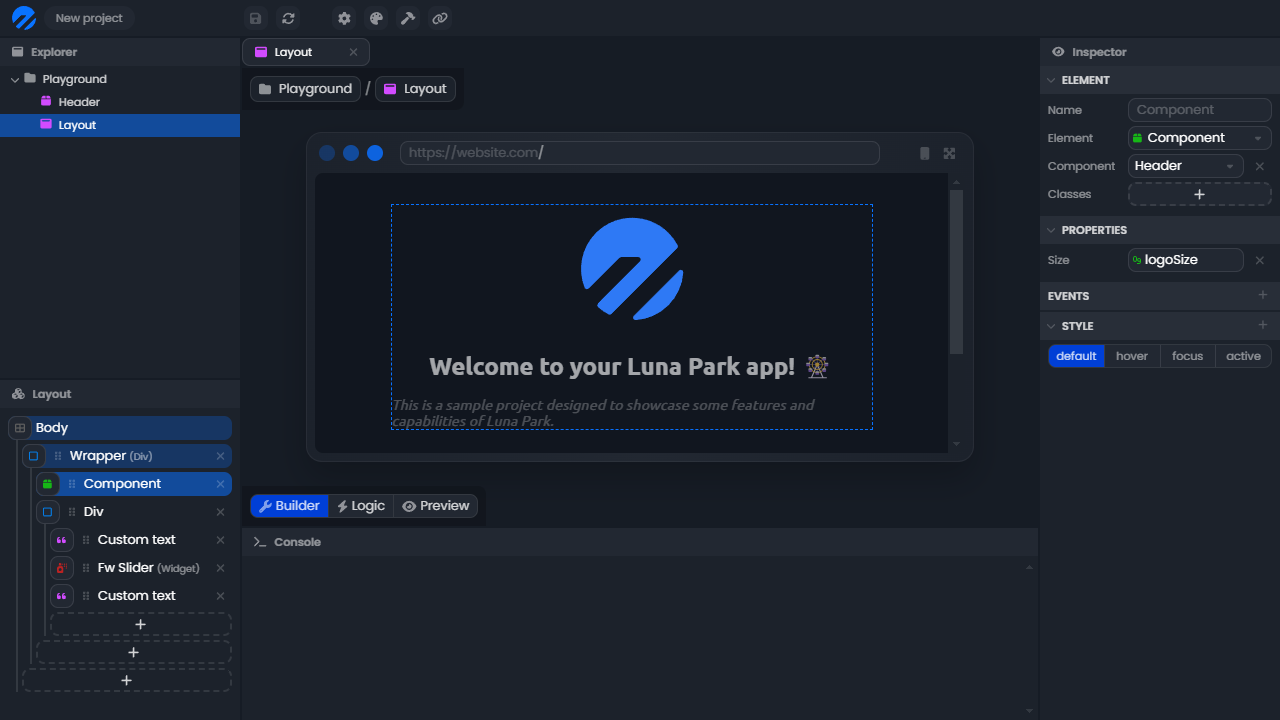
The explorer is located at the top left of the editor. It lets you create a new file with a right-click, select it with a double-click, and delete it with the delete key. You can create folders to better organize your project, but the structure does not affect the logic of your application.
Options Panel
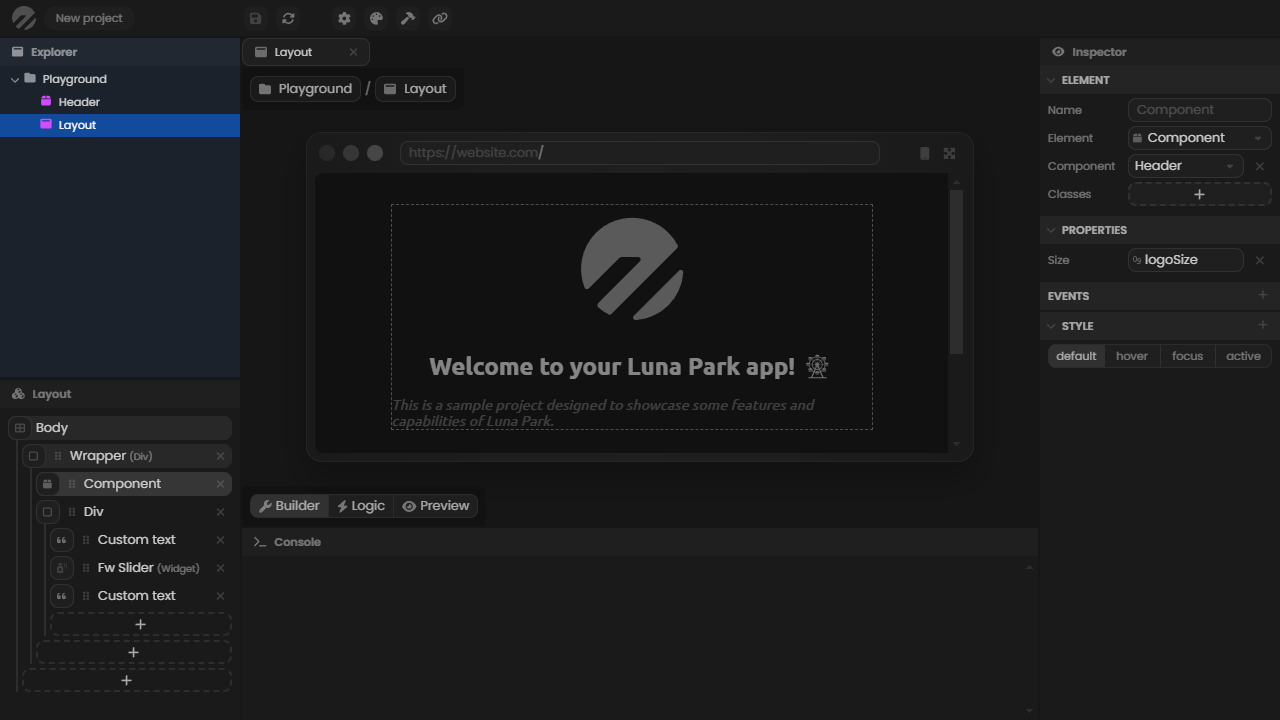
The options panel is located at the bottom left of the editor. It displays various information related to the file currently in use. Here, a layout component is open, and the options panel displays its layout tree. To set a file as the working file, you must double-click it in the explorer panel.
The Inspector
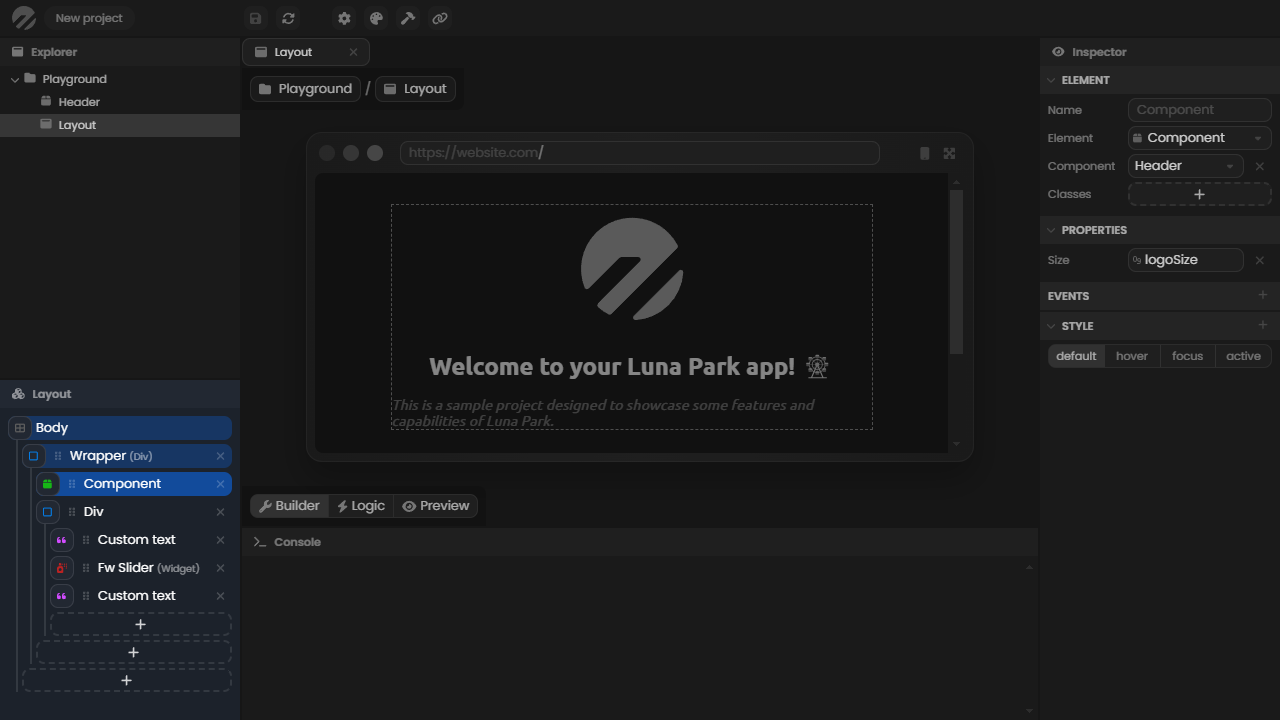
The inspector is located on the right side of the editor. It displays various information related to the selected element (a file, a layout element, a logic node, etc.). Here, a layout element is selected, and the inspector displays its properties.
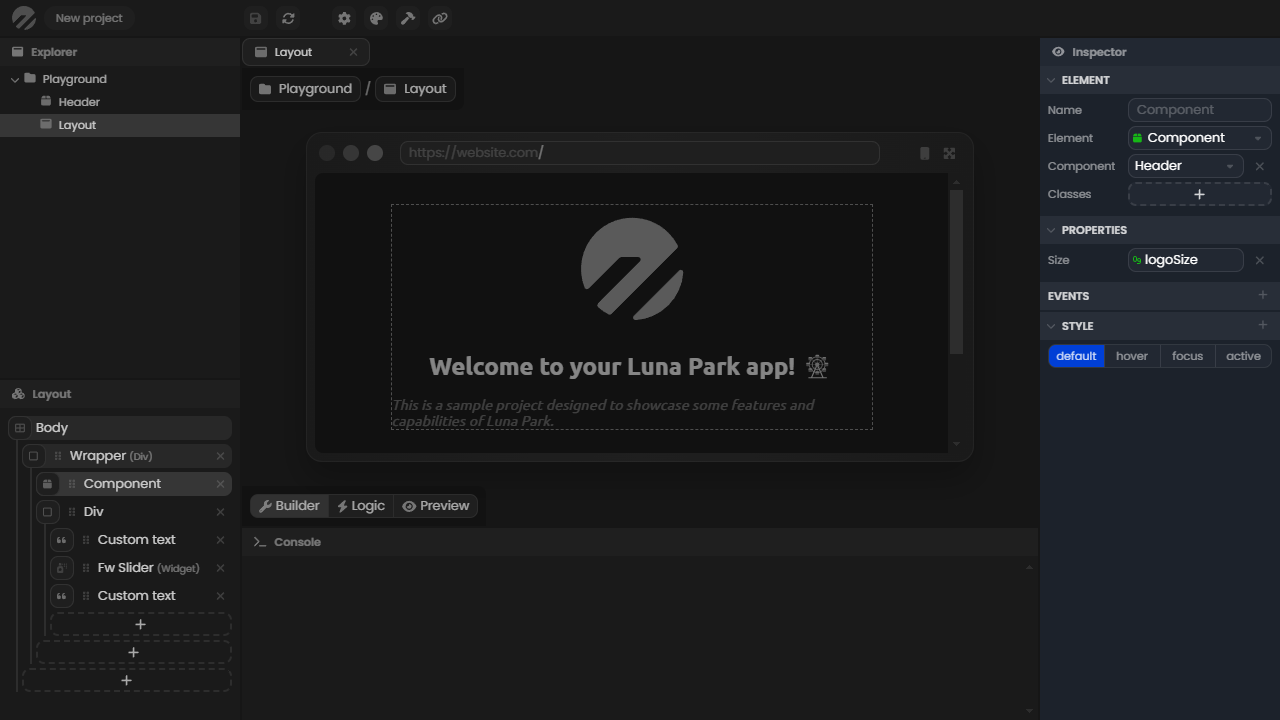
The Console
The console is located at the bottom of the editor. It lets you log values to debug your application. To display a value in it, you must use the log node in the logic editor. Note that the value will also be sent to your browser's console.
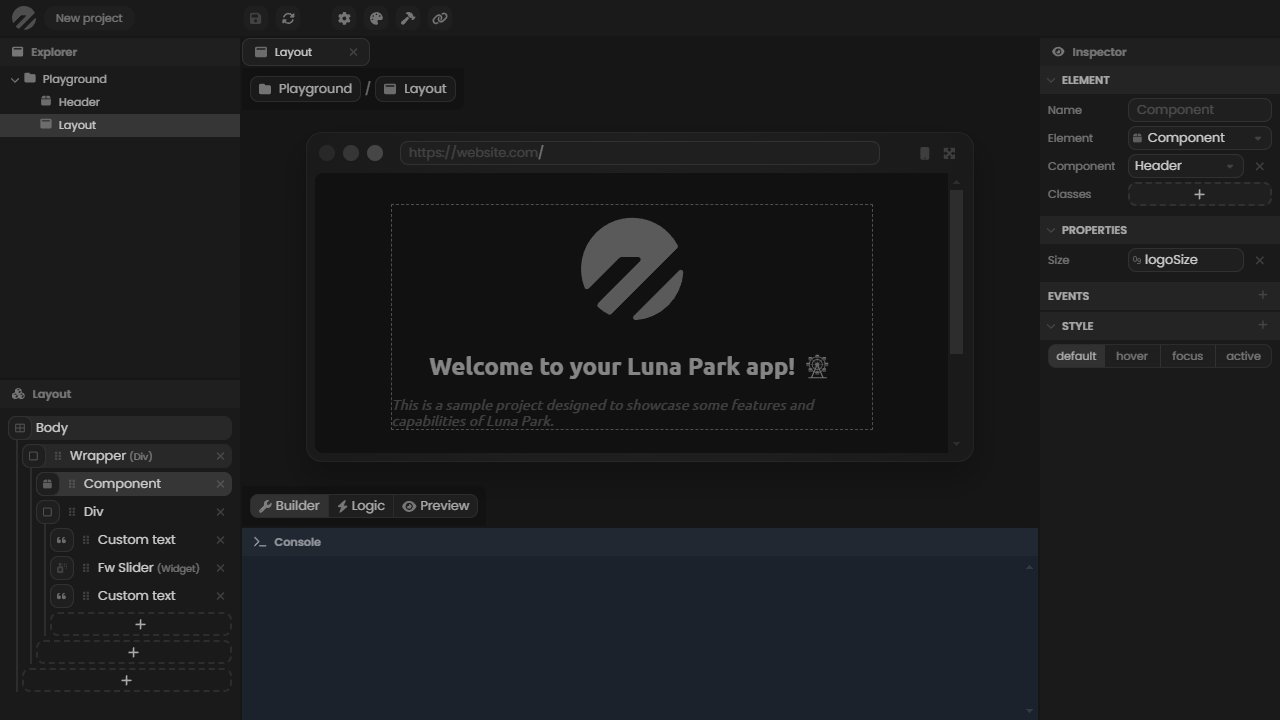
Resizing the Console Panel
The console panel can be resized vertically to adapt the space it occupies to your needs. Point your cursor at the panel's border (it becomes a resize handle) and drag it up or down to adjust the height.
The Main View
Finally, the main view is the central part of the editor. It displays a visualization of the working file. In this case, the builder mode of a layout component is selected, so it displays the visual builder of the layout.
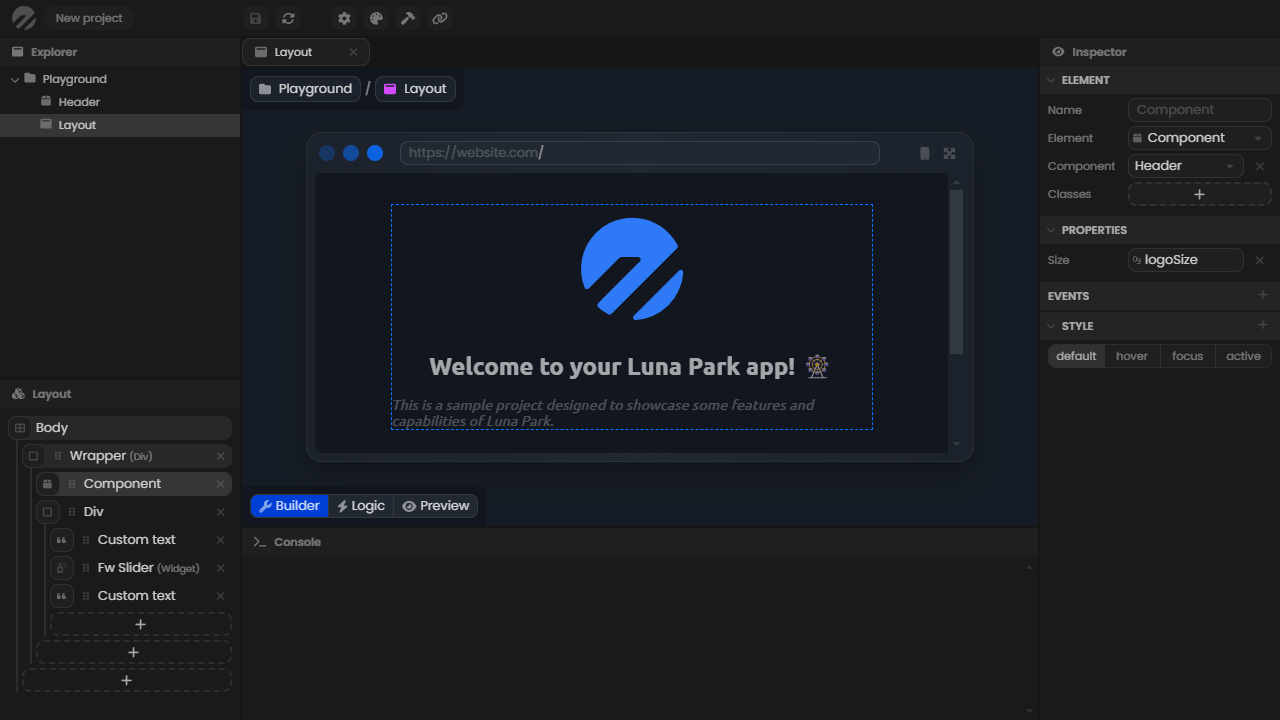
Immersive Mode
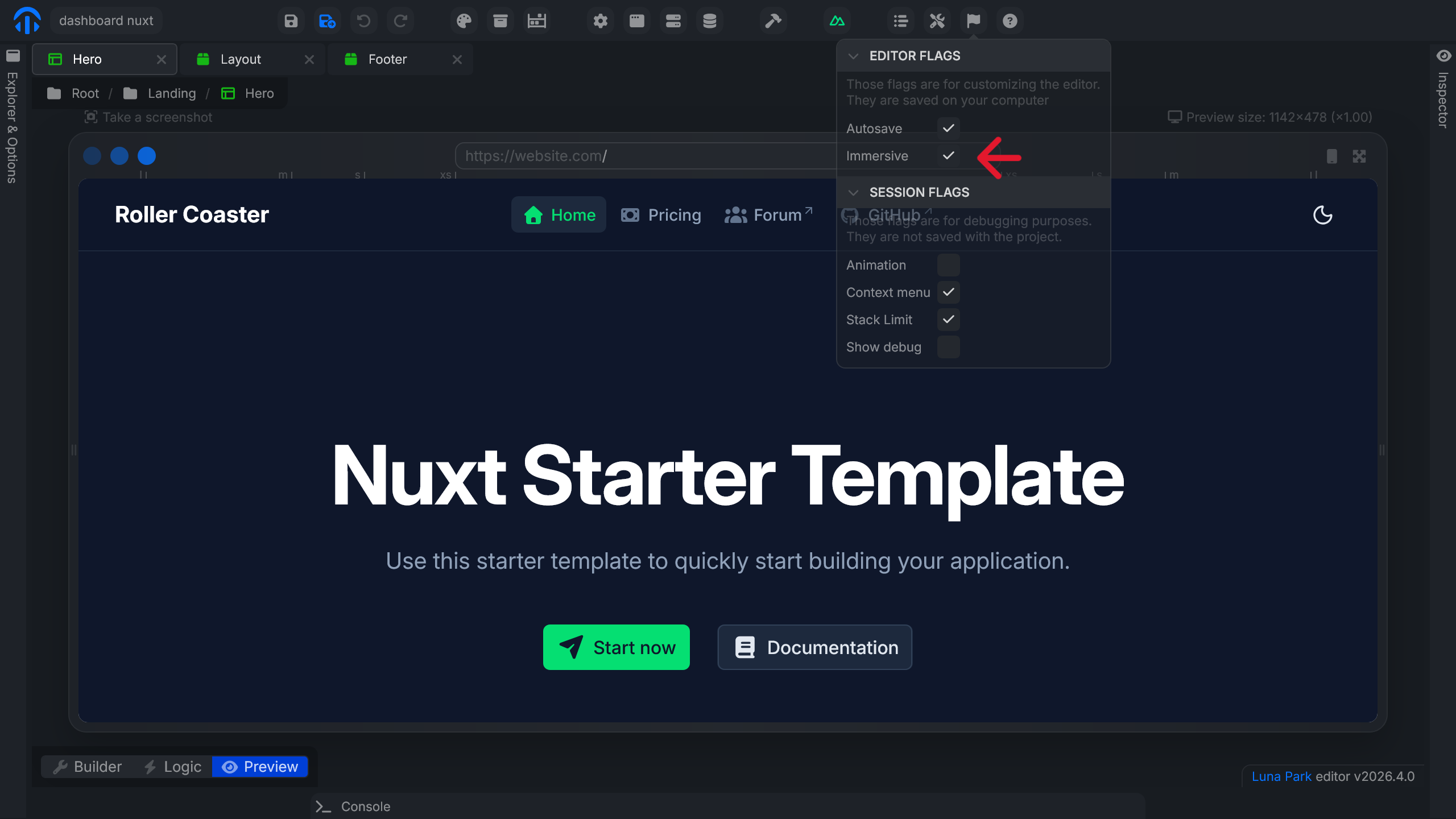
Immersive mode hides the side panels (explorer, inspector, console) to maximize the available space on the canvas. The panels reappear when you need them.
Enable it by checking immersive in the editor flags.
Once closed, the panels appear as a thin bar with their name on the edges of the screen. Hover over a panel's bar to reopen it.
Immersive mode is ideal when working on complex layouts or when you want an unobstructed view of the canvas.