The Graph
The graph is the foundation of visual logic in Luna Park. This is where you will build the logic of your application. It consists of nodes, links, and anchors that interact to create logical flows.
- Nodes: A node represents an action, a condition, or an operation.
- Anchors: Each node has input and output anchors. Input anchors are used to receive data, while output anchors send data.
- Links: Links connect the anchors to each other, forming a logical flow.
| Icon | Action | Description |
|---|---|---|
| Left click on the graph | Select the graph (needed for zooming) | |
| Hold right click and move | Move the graph along X and Y axis | |
| Scroll on the graph | Zoom in and out | |
| Hold left click and drag | Draw a selection box |
Nodes
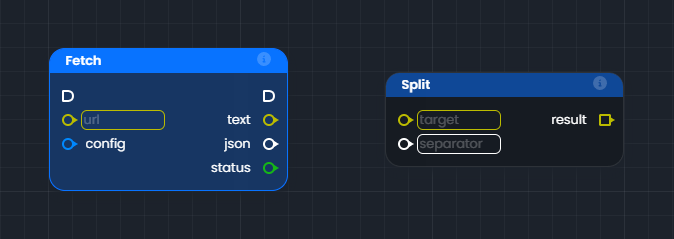
Nodes are the basic logical building blocks that can be placed on the graph. There are two main types of nodes:
- Function Nodes: These nodes have a blue background. They have input and/or output execution anchors. They execute when their input execution anchor is triggered.
- Operation Nodes: These nodes have a dark gray background. They do not have input and/or output execution anchors. They execute when their result anchor is called by a function node.
| Icon | Action | Description |
|---|---|---|
| Left click on a node | Select the node | |
| Hold left click and move | Move the node | |
+ | Ctrl click on a node | Add/remove from the selection |
/ | Delete on selected node | Delete the node |
Anchors
Anchors are the interfaces of the nodes. Input anchors are displayed on the left, and output anchors on the right. There are two types of anchors:
Execution Anchors () These anchors are displayed with a rounded square shape on the right. They are intended to be connected to the execution flow. A function node will be executed when the execution flow leading to its execution anchors is triggered. Then, after its execution, the node will trigger its output execution anchor.
Value Anchors ( / ) These anchors are displayed with a circular shape when they contain a single value, or a square shape when they contain a list (called an array) of values. When using input anchors, you can specify certain types, such as text or a number, in the input next to the anchor. The color of the anchor depends on the type of value it contains.
| Type | Example | Type | Example |
|---|---|---|---|
Links
Links are the lines that connect the anchors to each other in a logical graph. Their appearance changes according to their role:
- Execution Flow: They are white and thick to represent a logical execution flow.
- Value Flow: They take the color of the type of value they carry (e.g., green for a number, yellow for text).
Note that this is not a well-designed logic graph; it is only used to showcase wires, wire stacking, and reroute anchors. A well-designed logic graph should have an execution wire as straight as possible, making it easier to read.
| Icon | Action | Description |
|---|---|---|
| Left click on an anchor and drag | Create a wire starting from it | |
| Double click on a wire | Create a reroute node | |
+ | Ctrl click on a wire | Delete the hovered wire |
/ | Delete with a wire selected | Delete the wire |
Connecting Anchors
Links allow you to connect anchors of compatible types: Generally, you will connect input and output anchors of the same type.
However, you can also connect an output anchor to a less defined input anchor. For example, it is possible to connect an output anchor of an array of numbers to an input anchor of an array of unknown type.
Example of Logic in the Graph
In this example, we have a simple logic built with nodes and links in the graph.
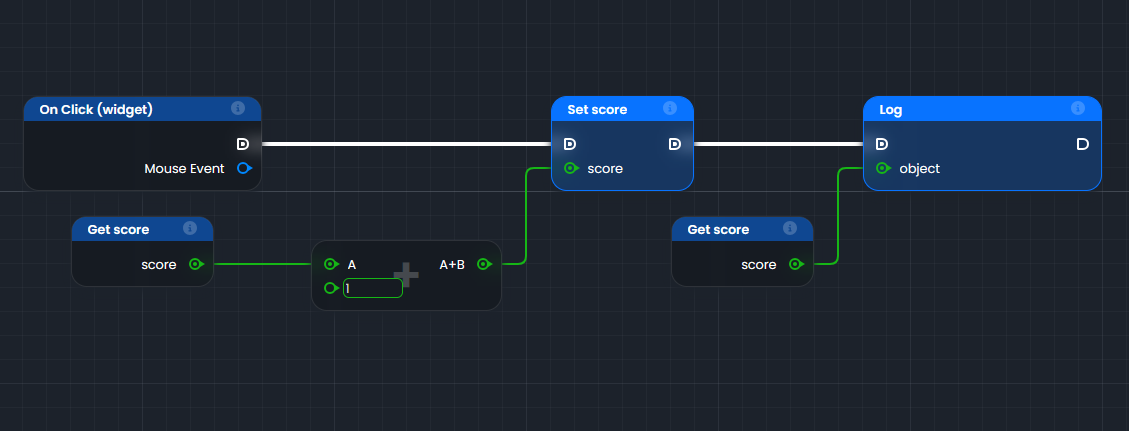
Step-by-Step
- Trigger: "On Click (widget)"
- This node represents an event that starts execution when a user clicks on an element in your interface (e.g., a button).
- The white link (execution flow) starts from this node and triggers the following actions.
- Reading Set score
- This function node updates a value called
score. - It is executed by the execution flow from "On Click".
- The green score connection (data flow) sends a new value of
scorefrom another node, so we trace back the chain to retrieve the value.
- This function node updates a value called
- Addition (+)
- This operation node adds two values:
A(linked to another node).1(a fixed value added directly).
- The green connection of
A(data flow) requires tracing back a bit further in the chain to retrieve its value.
- This operation node adds two values:
- Get score
- This operation node retrieves the current value of
score. - It can then be used to add to
1in the addition operation node.
- This operation node retrieves the current value of
- Execution of Set score
- Once the operation nodes are executed to retrieve the new value of score, the value of
scoreis updated with the result of the addition. - The white link (execution flow) starts from this node and triggers the following actions.
- Once the operation nodes are executed to retrieve the new value of score, the value of
- Reading Log
- This function node displays or records a value for debugging.
- It is executed after "Set score" via the white flow.
- The green connection sends the current value of score to display it.
- Get score
- This operation node retrieves the new value of
score. - It can then be used to display it in the Log node.
- This operation node retrieves the new value of
- Execution of Log
- Once the operation node is executed to retrieve the new value of score, the new value can be logged.
- There is no white link (execution flow) starting from this node, as there are no further actions to execute after this.
Visual Summary of the Flow:
- "On Click" → "Set score" → "Log".
- The white links represent the order in which the actions are executed.
- The colored links carry the data:
scoreis retrieved with "Get score".- It is modified (+1) and then updated with "Set score".
- Finally, it is sent to the "Log" to be displayed.
Inspecting the Graph
Inspection allows you to check the values and types held by the anchors through two modes:
| Icon | Description |
|---|---|
+ | Show type inspection |
+ (or + ) | Show value inspection |
Type Inspection: To visualize data types. Ctrl + Alt
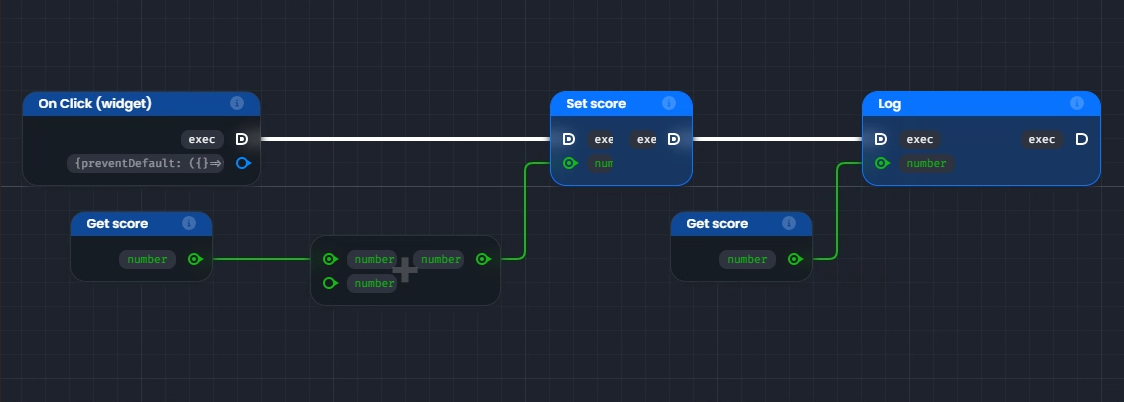
Value Inspection: To display the actual values of the anchors. Ctrl + Space or Ctrl + Q
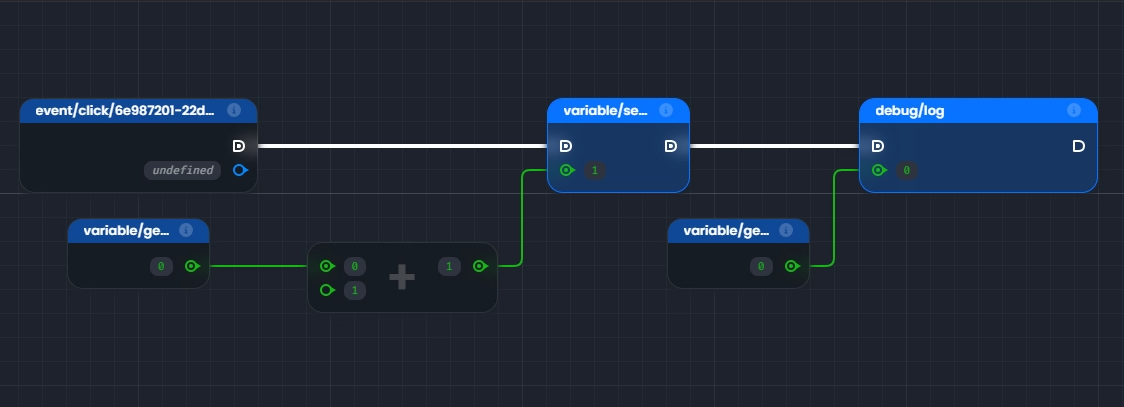
When using value inspection, the values are:
- Calculated in real-time for operation nodes.
- Taken from the last execution for function nodes.
INFO
If some values appear as undefined, it may be necessary to run your logic once to initialize all the values.